How to Generate a QR code with Stable Diffusion
Tutorial

In this post, you will learn how to generate QR codes.
This method starts with generating an image similar to the QR Code using img2img. But this is not enough to produce a valid QR Code. ControlNet is turned on during the sampling steps to imprint the QR code onto the image. Near the end of the sampling steps, ControlNet is turned off to improve the consistency of the image.
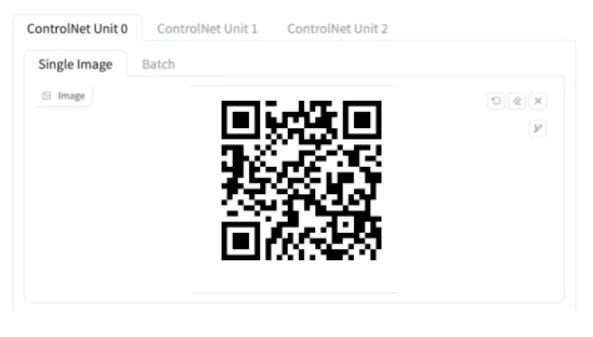
You will first need a QR Code. To increase your chance of success, use a QR code that meets the following criteria.
In AUTOMATIC1111 WebUI navigate to the img2img page.
Select a checkpoint model.
Enter a prompt and a negative prompt.
Upload the QR code to the img2img canvas
Adjust the following img2img settings
Resize mode: Just resize
Sampling method: DPM++2M Karras
Sampling step: 50
Width: 768
Height: 768
CFG Scale: 7
Denoising strength: 0.75
Upload the QR code to ControlNet‘s image canvas
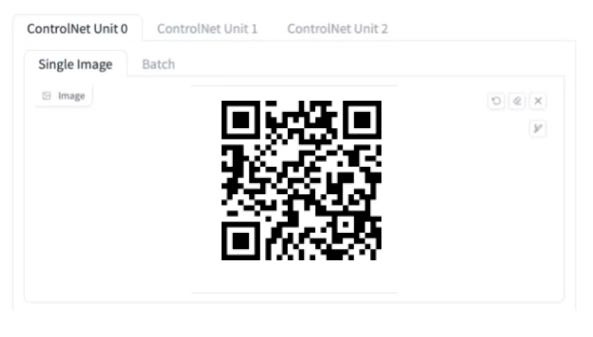
Enter the following ControlNet settings.
Enable: Yes
Control Type: Tile
Preprocessor: tile_resample
Model: control_xxx_tile
Control Weight: 0.87
Starting Control Step: 0.23
Ending Control Step: 0.9
Press Generate.
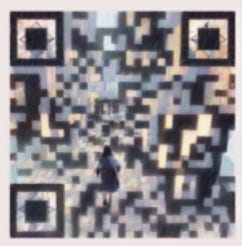
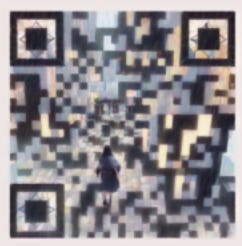
Scan with Phone Note** You will not get a functional QR Code with every single image. The success rate is about one in four. Generate more images and check for the keepers.